
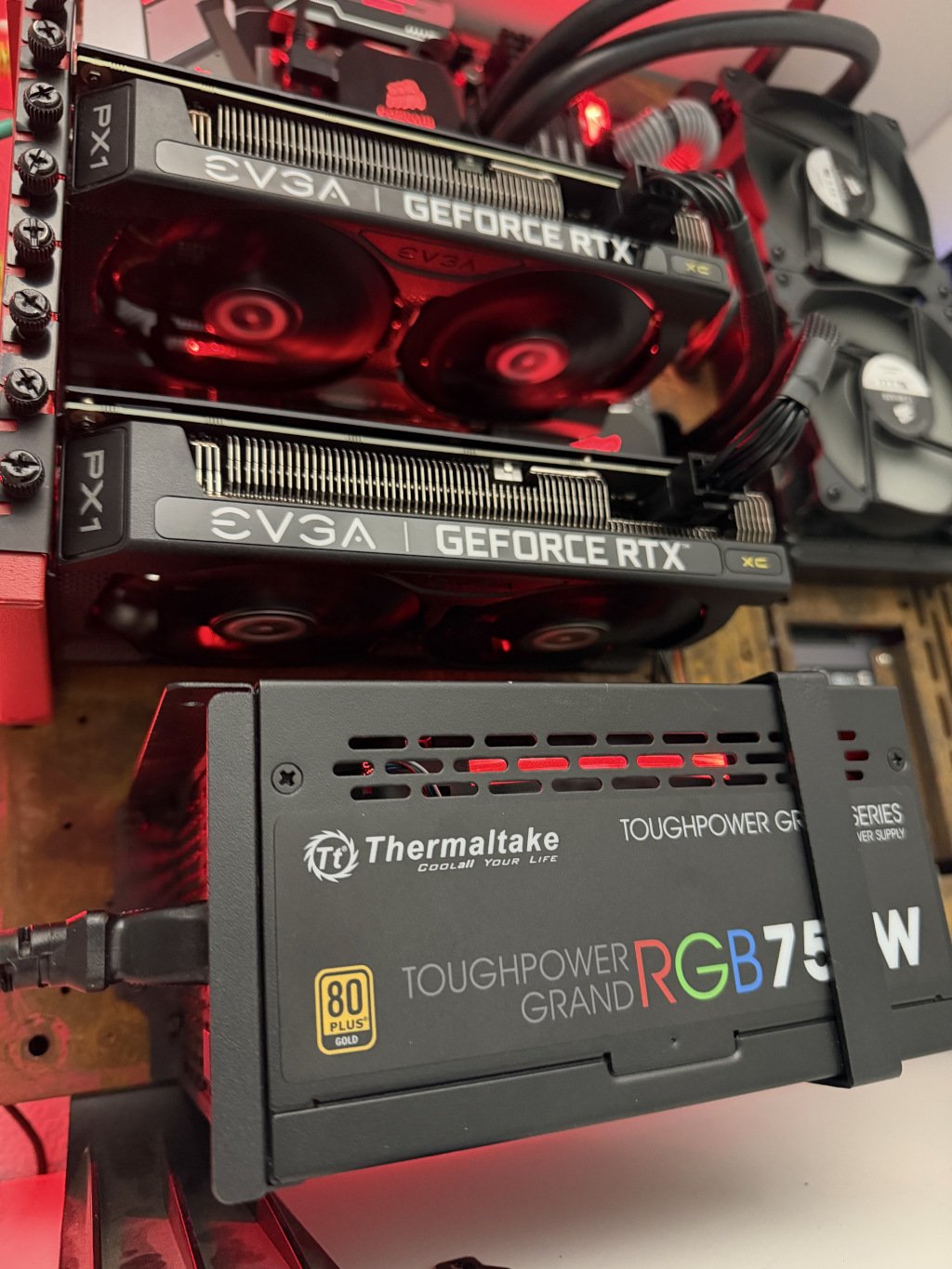
This guide grew out of my own learning process and a dusty old gaming PC that had found itself in retirement. I wanted to push my knowledge of large language models a little bit further than prompt engineering, a simple quest to get into the guts of these soft machines and figure out what makes them tick and in doing so further my own knowledge. I chose two NIVDIA RTX 3060's graphics cards, purchased as "renewed" and got to work.
Step 1 is to install rootless docker which will host the local LLM management and interaction services.
/***********BEGIN***********/
##1. **Purpose:** Install Docker Engine so that both the Docker daemon and
containers run as a regular, non-root Linux user.
------------------------------------------------------------------------
## 2. Prerequisites
You should have:
- A supported 64-bit Ubuntu installation
- A regular, non-root user account
- sudo access for installing host packages and configuring
prerequisites
- Internet access
- At least 65,536 subordinate UIDs and GIDs assigned to the Docker
user
Confirm the Ubuntu release:
cat /etc/os-releaseConfirm the current user:
whoami
id
------------------------------------------------------------------------
## 3. Add Docker's Official Ubuntu Repository
Update the package index and install the repository prerequisites:
sudo apt update
sudo apt install -y ca-certificates curl uidmap
Create the APT keyring directory:
sudo install -m 0755 -d /etc/apt/keyringsInstall Docker's official signing key:
sudo curl -fsSL https://download.docker.com/linux/ubuntu/gpg \
  -o /etc/apt/keyrings/docker.asc
sudo chmod a+r /etc/apt/keyrings/docker.asc
Add the Docker repository:
sudo tee /etc/apt/sources.list.d/docker.sources > /dev/null <<EOF
Types: deb
URIs: https://download.docker.com/linux/ubuntu
Suites: $(. /etc/os-release && echo "${UBUNTU_CODENAME:-$VERSION_CODENAME}")
Components: stable
Architectures: $(dpkg --print-architecture)
Signed-By: /etc/apt/keyrings/docker.asc
EOF
Refresh APT:
sudo apt update------------------------------------------------------------------------
## 4. Install Docker and the Rootless Components
Install Docker Engine, the CLI, Compose, Buildx, and the rootless
extras:
sudo apt install -y \
  docker-ce \
  docker-ce-cli \
  containerd.io \
  docker-buildx-plugin \
  docker-compose-plugin \
  docker-ce-rootless-extras \
  uidmap
The docker-ce-rootless-extras package provides the rootless setup
tooling used later in this guide.
------------------------------------------------------------------------
## 5. Verify Subordinate UID and GID Ranges
Rootless Docker requires the user to have subordinate UID and GID
ranges. Docker currently requires at least 65,536 subordinate IDs.
Check them:
grep "^$(whoami):" /etc/subuid
grep "^$(whoami):" /etc/subgid
A normal result resembles:
username:100000:65536The starting number may be different. The important part is that a range
of at least 65536 is assigned.
If both commands return a valid range, continue.
------------------------------------------------------------------------
## 6. Install the Rootless Docker Daemon
**Run this command as your normal user. Do not use sudo.**
dockerd-rootless-setuptool.sh installThe setup tool creates a per-user systemd service and normally creates
and selects a Docker CLI context named rootless.
Check the user service:
systemctl --user status dockerStart it if necessary:
systemctl --user start dockerEnable it for the user:
systemctl --user enable docker------------------------------------------------------------------------
## 7. Allow Rootless Docker to Start at Boot
Ordinarily, a user's systemd services stop when that user logs out.
Enable **linger** so the Docker user service can start at boot and
continue running without an interactive login.
sudo loginctl enable-linger "$(whoami)"Verify:
loginctl show-user "$(whoami)" -p LingerExpected result:
Linger=yes------------------------------------------------------------------------
## 8. Configure the Docker Client Environment
The rootless setup utility normally creates and selects the rootless
Docker context automatically.
Check the contexts:
docker context lsThe active context should normally be:
rootlessIf necessary, select it:
docker context use rootlessSome applications need the rootless Docker socket explicitly. Determine
your user ID:
id -uThe socket normally exists at:
/run/user/<UID>/docker.sockFor example, a user with UID 1000 would use:
export DOCKER_HOST=unix:///run/user/1000/docker.sockTo make that setting persistent while automatically using the current
user's UID:
echo 'export DOCKER_HOST=unix:///run/user/$(id -u)/docker.sock' >> ~/.bashrc
source ~/.bashrc
> The Docker CLI context is usually sufficient for normal command-line
> use. DOCKER_HOST is especially useful for software that expects a
> Docker socket rather than honoring Docker CLI contexts.
------------------------------------------------------------------------
## 9. Verify That Docker Is Actually Rootless
Run:
docker infoLook for rootless under **Security Options**.
A shortened example:
Security Options:
 seccomp
 rootless
 cgroupns
Also confirm the client context:
docker context showExpected:
rootlessCheck the daemon process:
ps -fu "$(whoami)" | grep dockerdThe rootless dockerd process should be owned by your normal user
rather than root.
------------------------------------------------------------------------
## 10. Hello World Test
Run Docker's standard test container:
docker run --rm hello-worldA successful run downloads the image, creates a container, prints
Docker's confirmation message, and exits.
At this point, the basic rootless Docker installation is operational.
------------------------------------------------------------------------
Now that Rootless Docker is installed - download two containers, ollama for LLM management and opennWebUI for human to model interaction via a web browser.. Up Next.
/********************************END BEGIN***********************************/
### Privileged ports
Rootless containers normally cannot bind directly to privileged host
ports below TCP/UDP 1024 without additional host configuration.
For a straightforward deployment, use an unprivileged host port such as:
ports:
  - "8080:80"
### Rootless Docker data belongs to the user
Rootless Docker keeps daemon state in the user's environment rather than
the conventional rootful Docker data location. Keep this in mind when
backing up or migrating the host.
### Rootless mode is a security boundary improvement, not a substitute for container security
Continue to:
- Use trusted images
- Keep Docker and Ubuntu patched
- Avoid unnecessary container privileges
- Use read-only mounts where appropriate
- Limit exposed ports
- Protect secrets and credentials
- Review Compose files before deploying them
------------------------------------------------------------------------
# References
This guide follows Docker's current rootless-mode and Ubuntu
installation guidance.
- Docker Rootless Mode:
https://docs.docker.com/engine/security/rootless/
- Install Docker Engine on Ubuntu:
https://docs.docker.com/engine/install/ubuntu/
- Docker Engine documentation: https://docs.docker.com/engine/
------------------------------------------------------------------------
------------------------------------------------------------------------
# Basic Troubleshooting
These are general diagnostic commands rather than application-specific
fixes.
## Is the user Docker service running?
systemctl --user status docker## Restart the rootless daemon
systemctl --user restart docker## View daemon logs
journalctl --user -u docker --no-pager -n 100Follow the log live:
journalctl --user -u docker -f## Which Docker context am I using?
docker context ls
docker context show
## Where is the Docker socket?
echo "${DOCKER_HOST:-DOCKER_HOST is not set}"
ls -l "/run/user/$(id -u)/docker.sock"
## Is Docker reporting rootless mode?
docker infoLook for:
rootlessunder **Security Options**.
## Check running containers
docker psInclude stopped containers:
docker ps -a## Check Compose projects
docker compose ls## Validate a Compose file
From the directory containing compose.yaml:
docker compose config## View container logs
docker logs <container-name>Or with Compose:
docker compose logsFollow logs:
docker compose logs -f## Confirm linger is enabled
loginctl show-user "$(whoami)" -p Linger## Check subordinate UID/GID assignments
grep "^$(whoami):" /etc/subuid
grep "^$(whoami):" /etc/subgid
------------------------------------------------------------------------
# Quick Reference
## Rootless Docker service
systemctl --user status docker
systemctl --user start docker
systemctl --user stop docker
systemctl --user restart docker
## Docker status
docker info
docker context show
docker ps
docker ps -a
docker images
## Compose
docker compose config
docker compose up -d
docker compose ps
docker compose logs -f
docker compose down
## Logs
journalctl --user -u docker -f
docker logs -f <container-name>
## Rootless socket
echo "$DOCKER_HOST"
ls -l "/run/user/$(id -u)/docker.sock"
## Boot persistence
loginctl show-user "$(whoami)" -p Linger------------------------------------------------------------------------